Generate a Policy from Observations
Tenure converts observed agent activity into a draft policy. Review every capability and evidence condition before publishing the draft to runtime enforcement.
Generate a draft
Section titled “Generate a draft”- Open Agents.
- Select the agent you want to govern.
- Choose Generate policy draft.
- Review the generated draft.
The draft uses successful observations from the last 30 days. If Tenure cannot generate one, run the agent through at least one complete workflow and try again. The observation period must contain a released tool invocation that Tenure can use as workflow evidence.
Review policy details
Section titled “Review policy details”Give the policy a stable ID, name, and description that identify the agent and its purpose.
Also review the project scopes and Tenure capabilities. These control the data and Tenure features available to tokens attached to the policy.
Review allowed tools
Section titled “Review allowed tools”The Allowed tools section shows capabilities observed for the agent.
Tools the agent invoked are selected by default. Tools that were available but unused remain unselected.
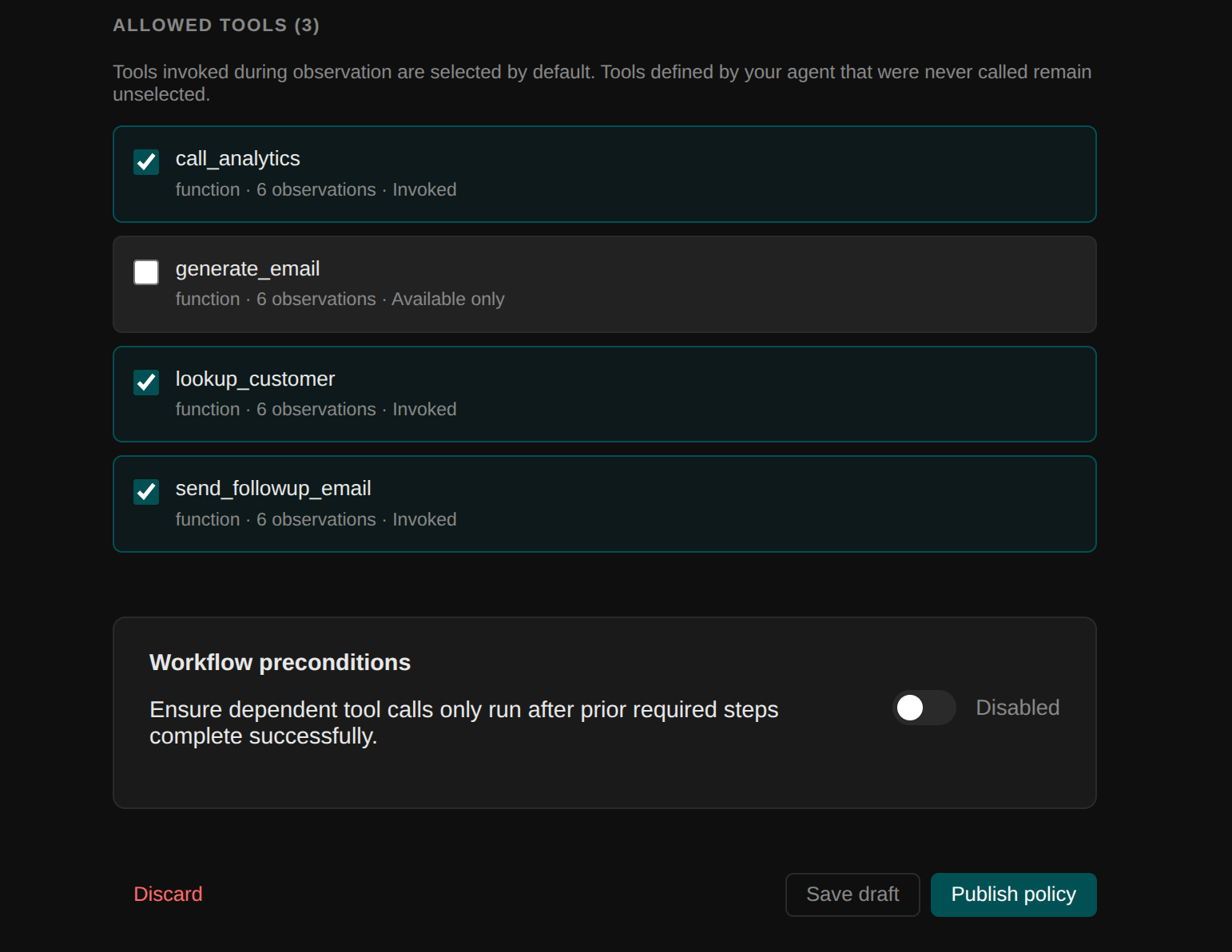
Evaluate each observed tool against the agent’s required authority:
- Remove capabilities unused in valid workflows to eliminate unnecessary surface area
- Verify that allowed tools match the agent’s explicit token identity
- Retain only the capabilities required for production execution
Tools excluded from the policy are removed before inference so the model does not see them. If the provider returns an unapproved tool anyway, Tenure blocks the invocation before execution.
Enable workflow preconditions
Section titled “Enable workflow preconditions”Turn on Workflow preconditions to review evidence requirements suggested from observed activity. You can also choose whether Tenure should fail a workflow when a prerequisite result is an error.
When enabled, the draft lists each observed action that has configurable evidence. Select Configure beside an action to review its requirements.

Configure evidence for an action
Section titled “Configure evidence for an action”The configuration view can contain two kinds of requirements.
Ancestor requirements
Section titled “Ancestor requirements”An ancestor requirement checks a tool observed earlier in the same workflow. It can require:
- A successful result from the earlier tool
- A condition on a field in the earlier tool’s result
- A condition on a field in the earlier tool’s arguments
- A value from the earlier call to match an argument passed to the governed action
For example, require lookup_customer before call_analytics, require its result to report active: true, and require the observed customer_id to match the customer_id sent to call_analytics.
Self requirements
Section titled “Self requirements”A self requirement checks the governed action’s own arguments. It does not require an earlier tool. Use it to constrain calls that have no upstream prerequisite or to add argument checks alongside ancestor evidence.
For example, require call_analytics.customer_id to be present or require a string argument to be non-empty.
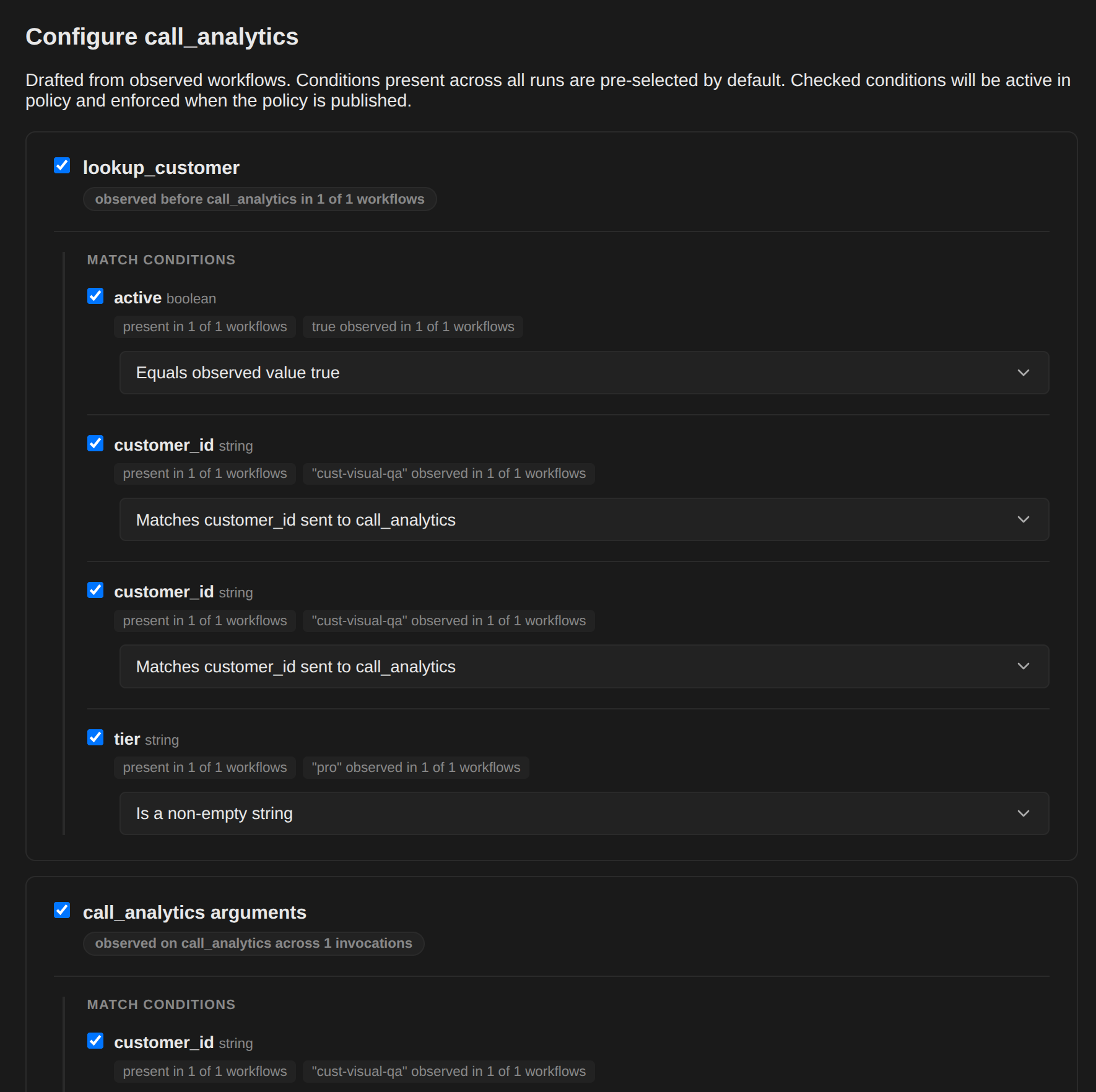
Review field conditions
Section titled “Review field conditions”Tenure proposes field conditions from observed values and types. Depending on the evidence, the configuration can offer checks such as:
- Field exists with the observed type
- String is non-empty
- Field equals an observed value
- Field is one of the observed values
- Earlier value matches an argument sent to the governed action
Conditions consistently present across the compared runs may be selected automatically. Review every selected condition before applying it. A condition observed in a small sample may describe the examples you ran without representing a rule the agent should always follow.
For each suggested action:
- Select Configure.
- Choose the ancestor tools that should always be required.
- Review result-sourced and argument-sourced field checks.
- Add or remove checks on the action’s own arguments.
- Select Apply.
A sequence-only ancestor requirement needs an earlier successful tool result but no field condition. A self requirement must contain at least one argument condition.
Choose who handles prerequisite errors
Section titled “Choose who handles prerequisite errors”The workflow preconditions section includes Fail workflow on prerequisite error.
When enabled, Tenure blocks governed downstream calls after a required earlier tool returns an error.
When disabled, Tenure does not block solely because the prerequisite result was an error. The agent framework remains responsible for retrying, recovering, stopping, or continuing.
A missing prerequisite result still blocks the downstream action in either mode. Self argument conditions are evaluated independently of this setting.
Save and publish
Section titled “Save and publish”Use Save draft if you want to continue reviewing later.
Use Publish policy when the draft is ready. Publishing:
- Creates the policy
- Attaches it to the observed agent token
- Makes the reviewed controls active for subsequent requests
Publishing locks the current policy version for enforcement. Subsequent policy edits increment the version number, preserving audit history for inspection.
Validate the policy
Section titled “Validate the policy”After publishing, run both allowed and intentionally disallowed scenarios.
Confirm that:
- Required tools remain visible to the model
- Unnecessary tools are removed
- Valid workflows continue
- Missing prerequisites block dependent actions
- Result and argument conditions enforce the intended constraints
- Invalid self arguments block the governed action
- Error handling follows the selected policy setting
- Enforcement decisions appear in Audit